
Two-step sign-in means you need a code from an app on your phone as well as your password. It keeps your pupils' details safe even if someone learns your password.
When You Need It
- School administrators need it before adding or seeing pupils. You can sign in, look around, add your teachers and create classes first.
- You'll enter a code each time you sign in before you can see pupils. If you set it up partway through, pages with pupils ask for your code once.
- Teachers don't have to, but we recommend it. A yellow banner offers to set it up; Not Now hides it for 3 months.
Setting It Up
- Install an authenticator app on your phone, such as Google Authenticator, Microsoft Authenticator, 1Password or Authy.
- On your Dashboard, press Set Up Two-Step Sign-In.
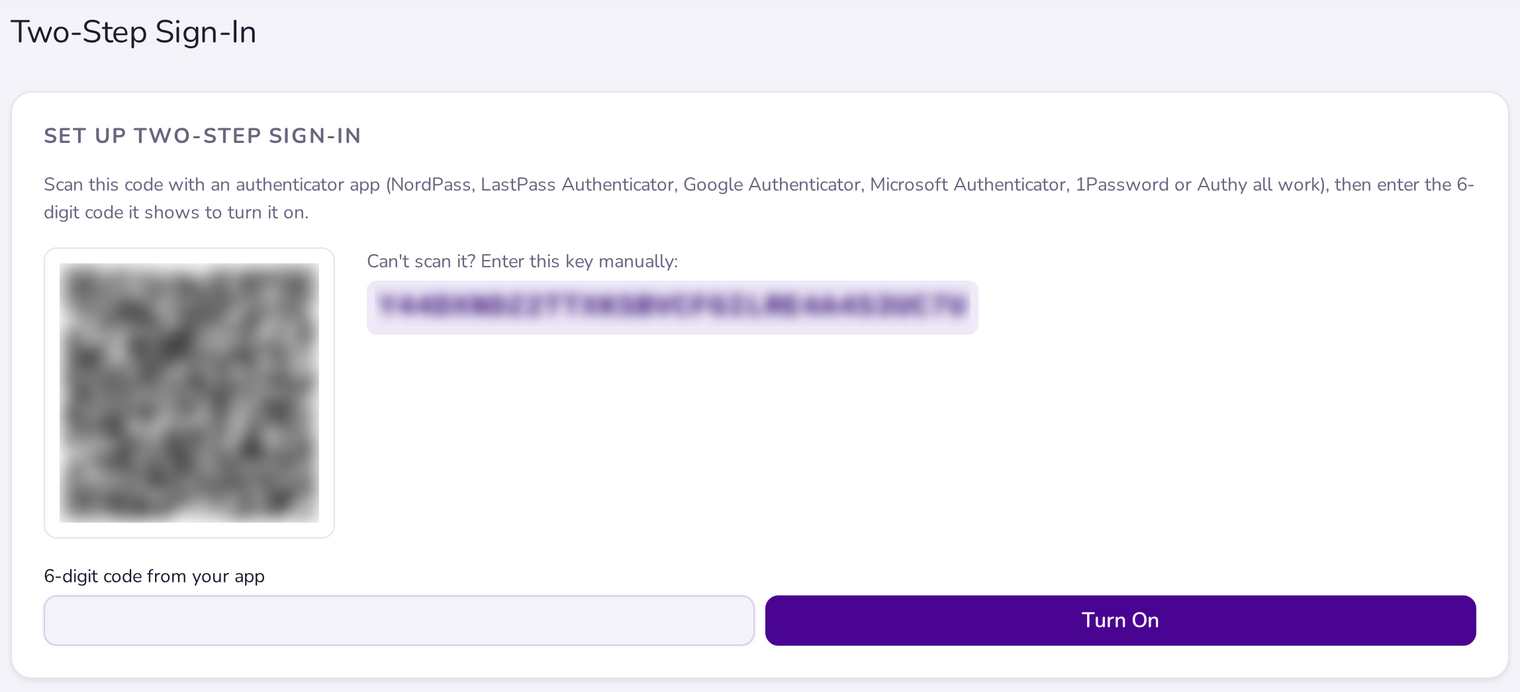
- Scan the square code with your app. Can't scan it? Type in the key shown underneath.
- Type the 6-digit code your app shows, and press Turn On.
- Save your recovery codes. They're shown once. Print them or keep them somewhere safe: each one lets you sign in once without your phone.
- Press Back to Your School to carry on where you were.
Signing In
After your password, open your authenticator app and type the 6-digit code it shows. It changes every 30 seconds.
Lost Your Phone?
- Sign in with your password and one of your recovery codes instead of a code from the app.
- You're taken straight to the two-step sign-in page. Press Set Up on a New Phone. Your old phone and your old recovery codes stop working at once.
- Scan the square code with the app on your new phone, type the 6-digit code it shows and press Turn On.
- Save your new recovery codes. We also email you to say it was set up on a new phone.
Set Up on a New Phone is offered for 30 minutes after signing in with a recovery code. After that, sign out and sign in with another recovery code.
- No recovery codes left? Email [email protected] from your school email address and we'll help you get back in.
- No recovery codes left? Email [email protected] from your school email address and we'll help you get back in.
See also Data Protection for Schools.