
Sign-in cards give each pupil their username and password on a small card you can cut out and hand out.
Passwords are stored scrambled, so nobody, including us, can read an existing one. Printing cards gives every pupil you tick a new password, and their old one stops working.
Print Cards
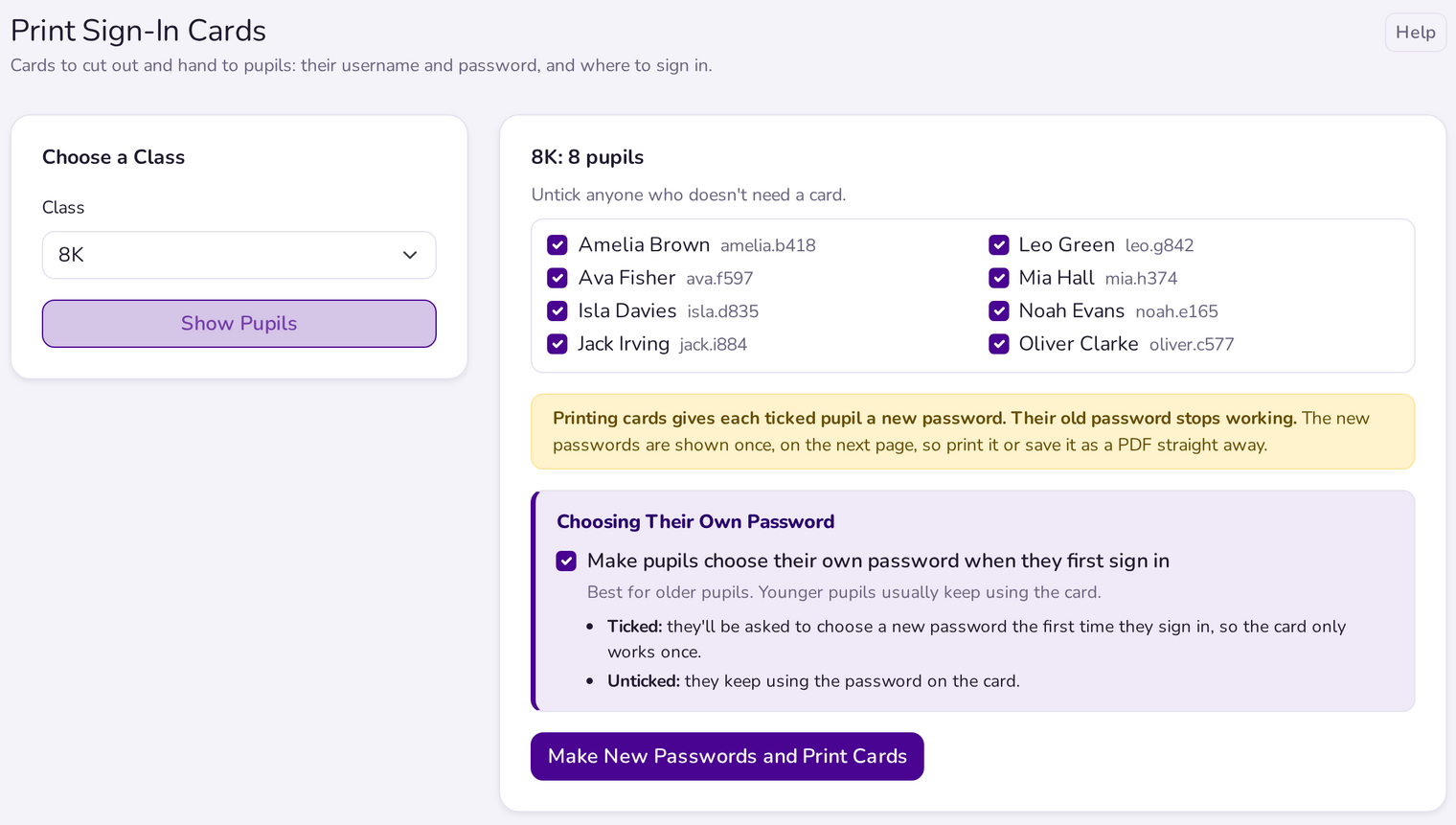
- On Classes or Pupils, press Print Sign-In Cards (or go here when signed in).
- Choose a class and press Show Pupils.
- Tick the pupils who need a card. Everyone is ticked to start with.
- Under Choosing Their Own Password, tick the box if pupils should choose their own password the first time they sign in. It's ticked to start with when most of the class is in Year 7 or above.
- Press Make New Passwords and Print Cards. The cards appear, ready to print.
- Press Print or Save as PDF. Cut along the dotted lines.
The cards are shown once. If you close the page before printing, just make new cards.
Who Can Print Them
The school administrator can print cards for any class. A teacher can print them for the classes they are assigned to.