
Teachers
The school administrator adds teachers on Teachers. Each one gets an email with a link to choose their own password. See Adding and Removing Teachers.
New to Oaka Digital? Download the guide for teachers (PDF): signing in, your classes, sign-in cards, setting work, the board and insights, with a picture of each step.
Classes
On Classes, press Create Class with a name and school year.
Adding Pupils to a Class
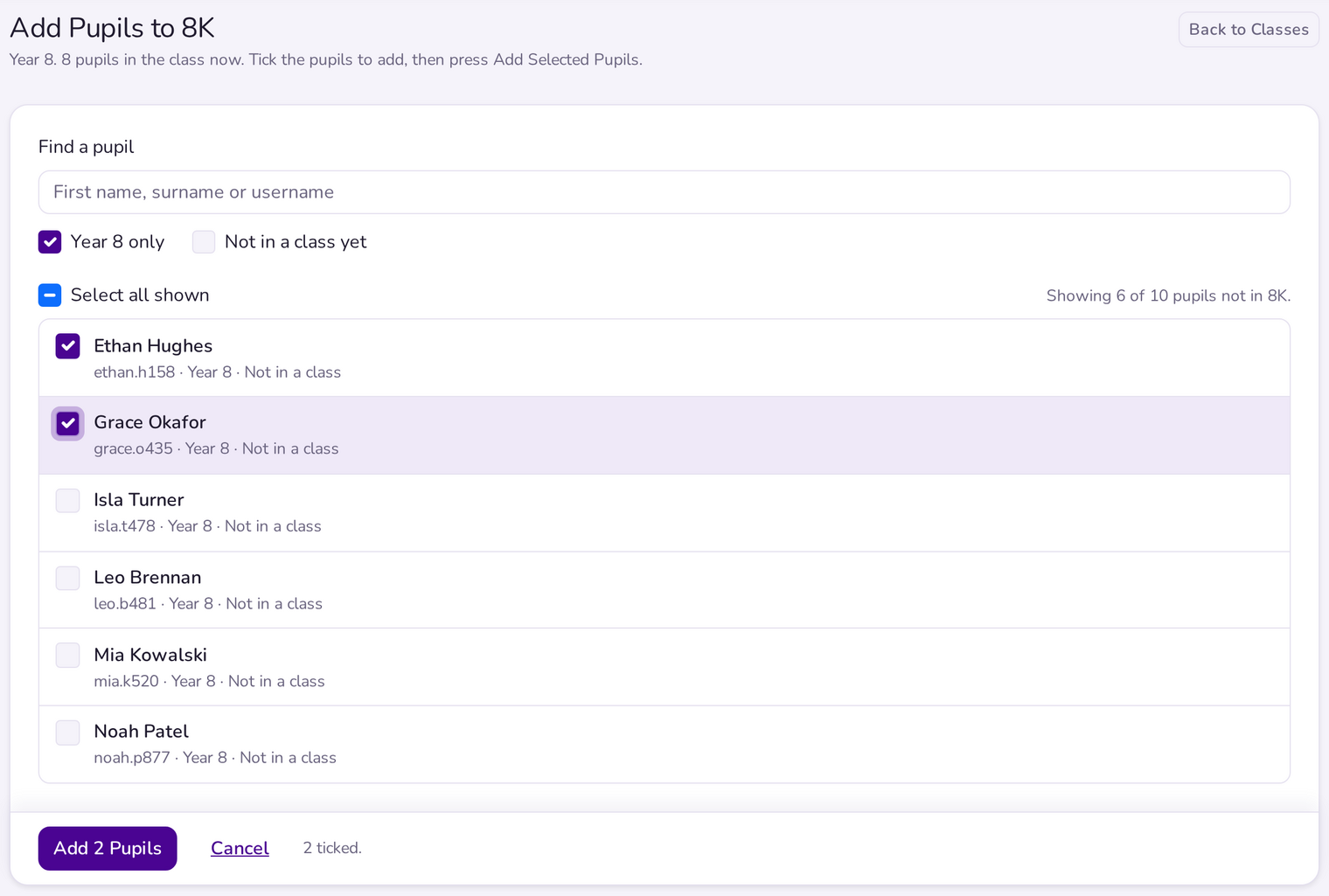
Press Add Pupils on the class. You'll see every pupil at the school who isn't in the class yet.
- To find pupils quickly, type part of a first name, surname or username under Find a pupil. The class's own year (for example Year 5 only) is ticked to start with: untick it to see every year. Tick Not in a class yet to see only pupils who aren't in any class.
- Tick the pupils to add. Select all shown ticks everyone the search shows. Pupils you ticked stay ticked when you search again, so you can add pupils from several searches at once.
- Press Add Selected Pupils (it shows how many, for example Add 12 Pupils).
A pupil can be in more than one class. To take a pupil out of a class, press the cross on their name.
Teachers for a Class
A class can have more than one teacher. Under Assign Teachers, the school administrator ticks the teachers for each class and presses Save Teachers. A teacher who creates a class is assigned to it automatically.
Once your school has pupils, assigning teachers needs two-step sign-in, because a teacher can see their class's pupils.
Who Can See What
- The school administrator can see and manage every class and pupil in the school.
- A teacher can manage, set work for and see insights on the classes they are assigned to.
- Every teacher can see the school's list of pupils, with their own classes' pupils first.
A Pupil's Password
On Classes, find the pupil under Every Pupil in the School and press Reset Password. The new password is shown once. For a whole class, print sign-in cards instead. Press a pupil's name to see their progress.