
- Sign in on the computer connected to your board.
- Go to Teach from the Board. You'll see every topic your school's licences cover: every topic in a Key Stage you have a pack for, and the subject's topics for a subject licence (such as KS3 History).
- Open a topic and go into Learn.
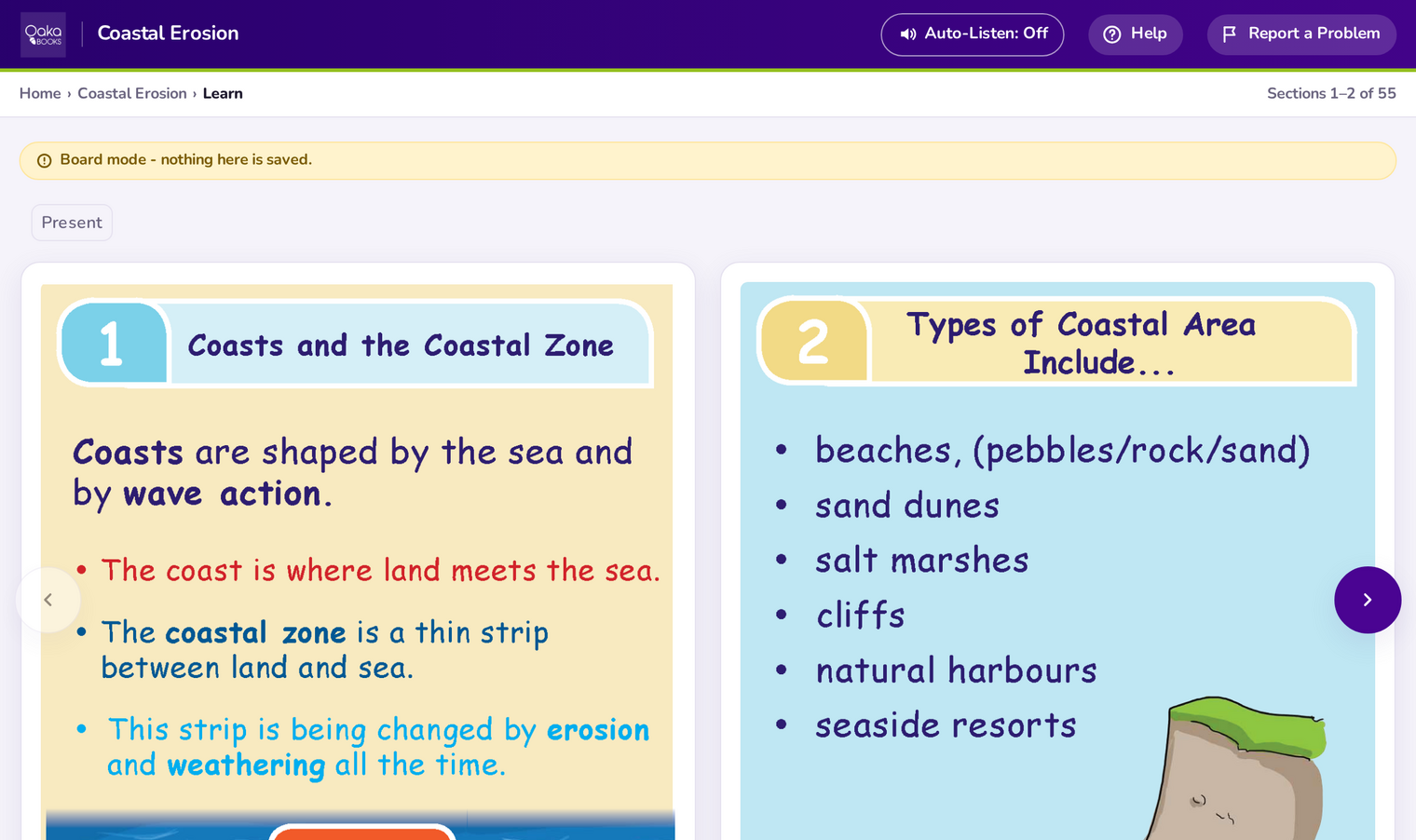
- Press Present. The section fills the screen, with nothing else in the way.
- Use the arrow keys, or swipe, to move between sections. Press Esc to leave full screen.
- A section that is a whole booklet page shows on its own. Click it, or press See It Bigger, to show it full size; Close goes back.
You can also open Practise and the Quiz to work through them together.
Good to Know
- Nothing you do on the board is saved to any pupil's progress, and it doesn't take a place on a licence.
- Listen works on the board too, if your speakers are on.
- Buy the Printed Topic Pack beside a topic on Teach from the Board (and on Set Work) opens its printed pack in the Oaka Books shop, in a new tab. Pupils never see this link.