
Your school has one school administrator and as many teachers as you like. Only the school administrator can add or remove teachers.
Adding a Teacher
- Go to Teachers.
- Under Add a Teacher, type their name and school email address, and press Add Teacher.
- They get an email called "[Your name] Added You to [Your school] on Oaka Digital", with a Choose Your Password button. The link works for 7 days.
- Once they've chosen a password, they sign in at learn.oakabooks.co.uk with their email address.
Then assign them to their classes. See Classes and Teachers.
Once your school has pupils, you need two-step sign-in to add teachers or assign them to classes, because a teacher can see their pupils.
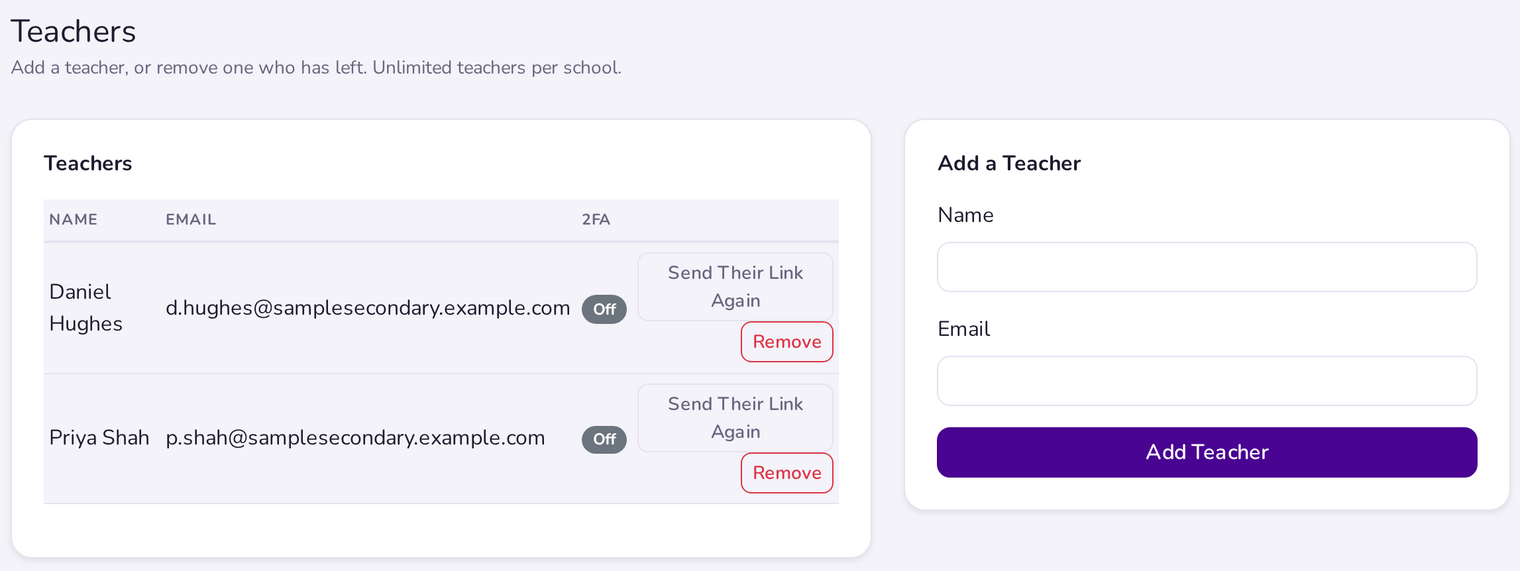
A message at the top of the page says whether the email went. If it didn't, the teacher is still added: the message says why, and you can press Send Their Link Again next to their name once it is sorted out.
They Didn't Get the Email
Ask them to check their spam or junk folder, and that the address is right. Then press Send Their Link Again next to their name. If they'd already chosen a password, it sends a link to reset it instead. The message at the top of the page says whether it went:
- An earlier email to this address bounced: we no longer send to it. Ask the teacher to check their address. If it's wrong, remove them and add them again with the right one. If it's right, email [email protected] and we'll unblock it.
- Too many links have been sent to this address in the last hour: try again later.
- The email could not be sent just now: try again in a few minutes.
Removing a Teacher Who Leaves
On Teachers, press Remove next to their name. They're taken off the school and can no longer sign in. Any work they set stays with the class.
Changing the School Administrator
If your school administrator is leaving, or you want a teacher to take over, email [email protected] from your school email address. We can make an existing teacher the school administrator, or add someone new.
What Teachers Can Do
Teachers can see and manage the classes they're assigned to: set work, see insights, look at their pupils' progress, reset their pupils' passwords and teach from the board. See Classes and Teachers.