
For a whole class or year group, import a spreadsheet instead. Only the school administrator can add pupils, after setting up two-step sign-in.
Adding a Pupil
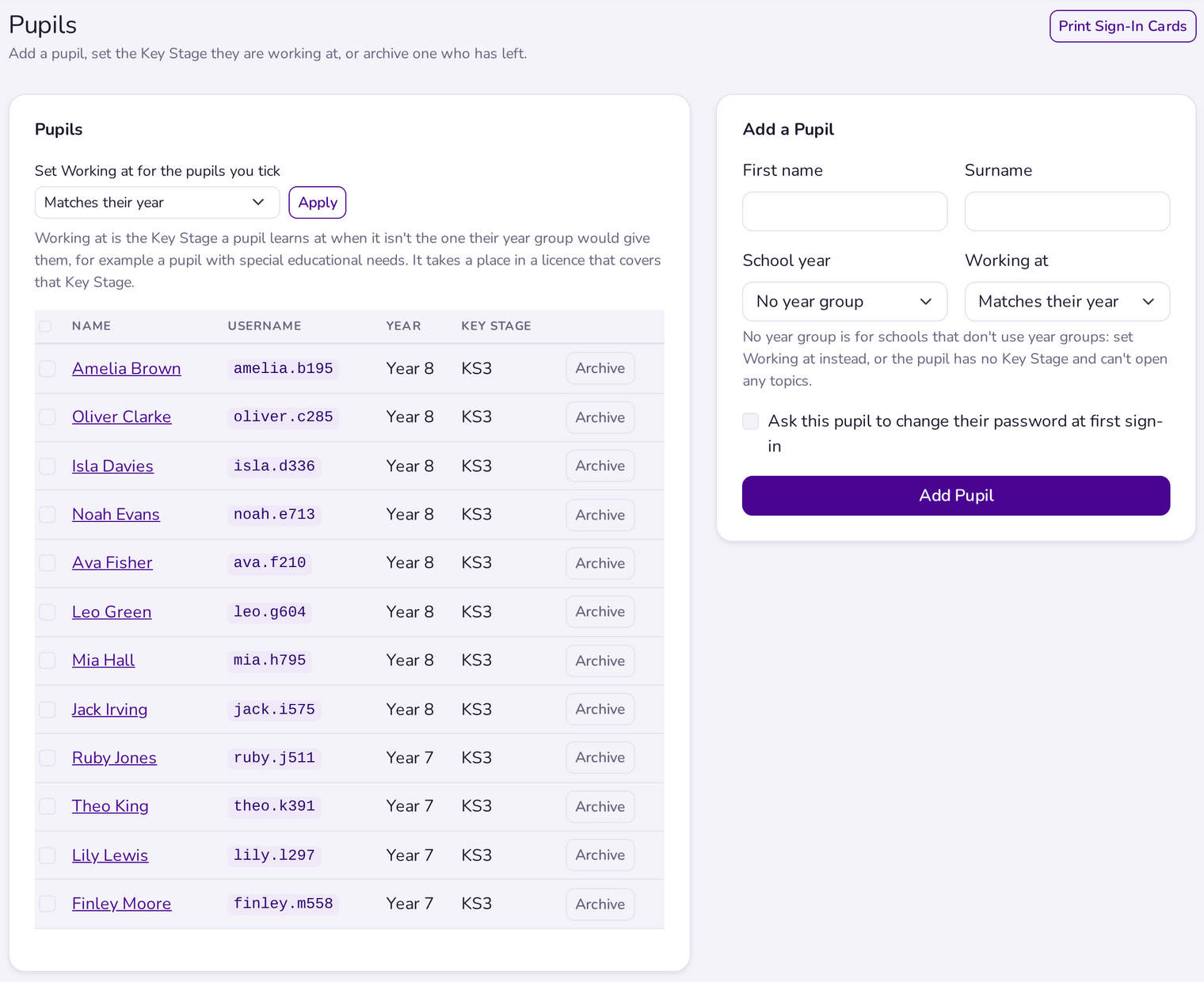
- Go to Pupils.
- Under Add a Pupil, type their first name, surname and school year.
- Working at is optional. Leave it on Matches their year, or choose KS1 to KS4 if the pupil learns at a different Key Stage from their year group (for example, a Year 7 pupil with special educational needs working at KS2). If your school doesn't use year groups, choose No year group and set Working at instead.
- Tick Ask this pupil to change their password at first sign-in if you'd like them to choose their own.
- Press Add Pupil.
You'll see their username (like sophie.g123) and password once. Press Print, copy them, or print a sign-in card later.
Each pupil takes a place in your whole Key Stage licence for their Key Stage if you have one (such as a KS3 pack). If you don't, they take a place in each subject licence that covers them (such as KS3 History and KS3 Geography). You can't add a pupil when the licence they need a place in is full. See Licences, Packs and Places.
Changing a Pupil's Year Group or Key Stage
You can change it at any time:
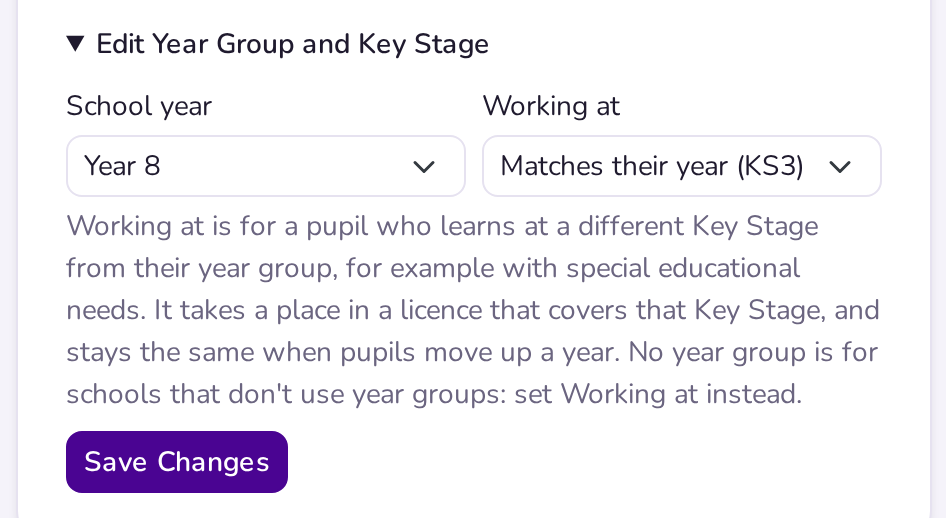
- One pupil: press their name on Pupils, open Edit Year Group and Key Stage, make your changes and press Save Changes.
- Several pupils: tick them on Pupils, choose under Set Working at for the pupils you tick, and press Apply.
Changing it moves the pupil's place to the licence for their new Key Stage, as for a new pupil. If there isn't room, Oaka Digital says how many places are short and changes nothing. A pupil with no year group and no Working at has no Key Stage, so they can't open any topics until you set one.
Passwords
Passwords are stored scrambled, so nobody can look one up. If a pupil forgets theirs:
- One pupil: on Classes, find them under Every Pupil in the School and press Reset Password. Teachers can do this for pupils in their own classes.
- A whole class: print new sign-in cards.
Pupils Who Leave
On Pupils, press Archive next to the pupil. Straight away they can't sign in and no longer take a place. Their record is kept for 12 months in case they come back, then deleted automatically. Archived Pupils shows the date each one will be deleted.
Pupils Who Come Back
Under Archived Pupils, press Bring Back next to the pupil. They sign in with the same username and password, their progress is as they left it, and they're in the same classes as before. They need a free place, just as a new pupil would: if there isn't room, Oaka Digital says so and nothing changes.
To delete an archived pupil sooner, press Delete Now and type DELETE. This can't be undone.
At the end of the school year, the September Rollover archives your leavers for you.
A Pupil's Page
Press a pupil's name on Pupils, Classes, Set Work or Insights to open their page. See Seeing a Pupil's Progress.