
Prepare Your File
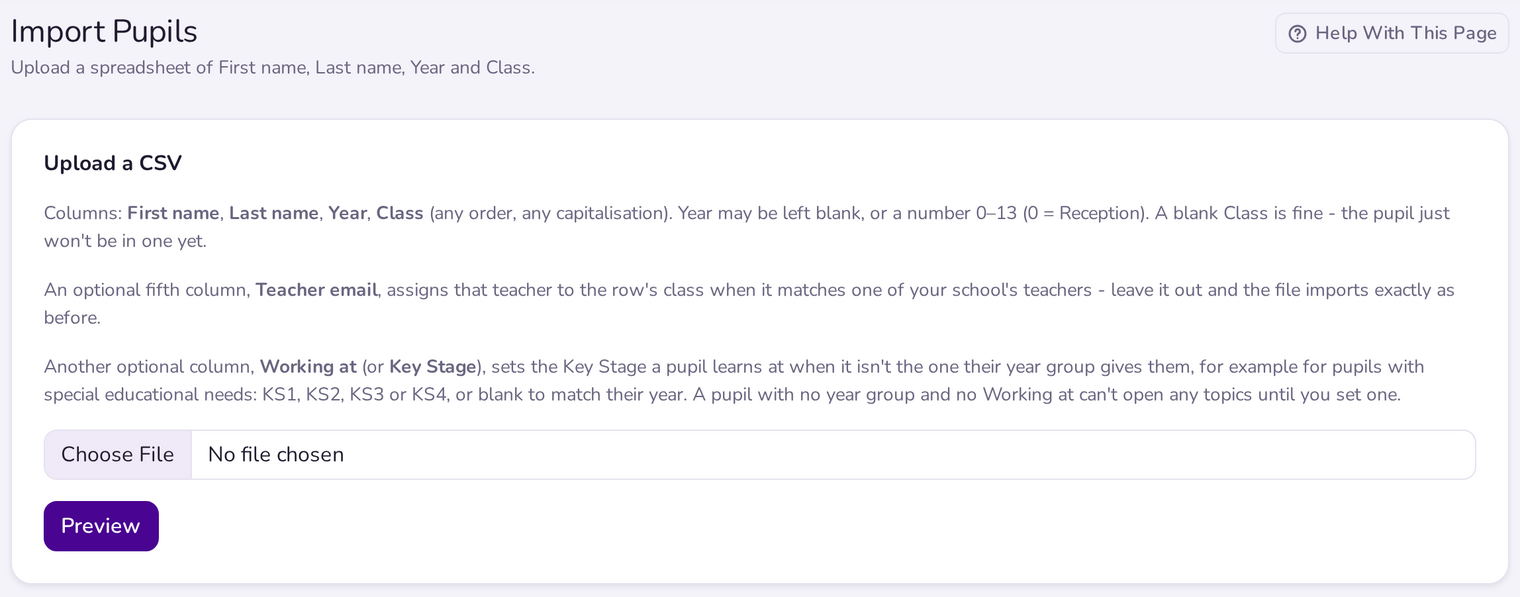
Save a spreadsheet as CSV with a header row and these columns, in any order:
- First name
- Last name (or Surname)
- Year:
Reception,R,Year 5,Y5or just5. You can leave it blank if you don't know it yet. - Class (for example
5B) - Teacher email (optional): the email of a teacher at your school to assign to that class
- Working at (optional, or Key Stage): KS1, KS2, KS3 or KS4 for a pupil who learns at a different Key Stage from their year group. Leave it blank to match their year.
Up to 1,000 pupils at a time.
Import
- Go to Import and choose your file under Upload a CSV.
- Press Preview. Check every row. Problems are shown row by row. A pupil who looks like one you already have is flagged, and left out unless you tick to add them anyway.
- Press Confirm Import.
Missing classes are created for you. Nothing is added unless the whole import can go in.
Places
Each pupil takes a place in your whole Key Stage licence for their Key Stage if you have one, otherwise in each subject licence that covers them. Their Key Stage is their Working at Key Stage if it's set, otherwise their school year's. A row with no year and no Working at is added with a warning: that pupil can't open any topics until you set one. If there isn't room, the import tells you exactly how many more places each licence needs and adds nothing. See Licences, Packs and Places.
Sign-In Details
Straight after the import you'll see each pupil's username and password once, ready to print, plus a one-time CSV download. Pupils don't have to change their password when they first sign in. If the details get lost, print new sign-in cards, which can also ask pupils to choose their own.
You need two-step sign-in to import pupils. To add just one or two, see Adding Pupils, Passwords and Leavers.