
If you bought Oaka Digital from another company (a reseller), we email you everything you need. Setting up takes about five minutes.
Prefer pictures? Download the step-by-step guide (PDF), with a picture of every step.
1. Find Our Email
It comes from [email protected]:
- New to Oaka Digital? It's called "[the company you bought from] Has Set Up Oaka Digital for You". It has your username (your email address), a temporary password and your licence codes.
- Already use Oaka Digital? It's called "Your Oaka Digital Licence Codes From [the company you bought from]" and has your new codes.
Can't find it? Check your spam or junk folder, or ask the company you bought from to send it again.
2. Sign In and Choose Your Own Password
- Go to learn.oakabooks.co.uk and sign in with your email address and the temporary password from the email.
- Choose your own password, type it twice and press Save Password. The temporary one then stops working.
3. Use Your Licence Code
Press Use This Code under a code in the email, or on your home page. Then:
- Choose the code. It's already chosen. If you have more than one, check the right one is ticked and press Next: Choose the Child.
- Choose the child. If your child is listed, tick their name and press Next: Check and Confirm.
- Or add your child. If your child isn't listed yet, type their first name, surname and school year and press Add This Child. If you see Or Add a New Child, press it first. Adding a child doesn't use the code.
- Check and confirm. Check the child's name and what the code gives them, then press Confirm.
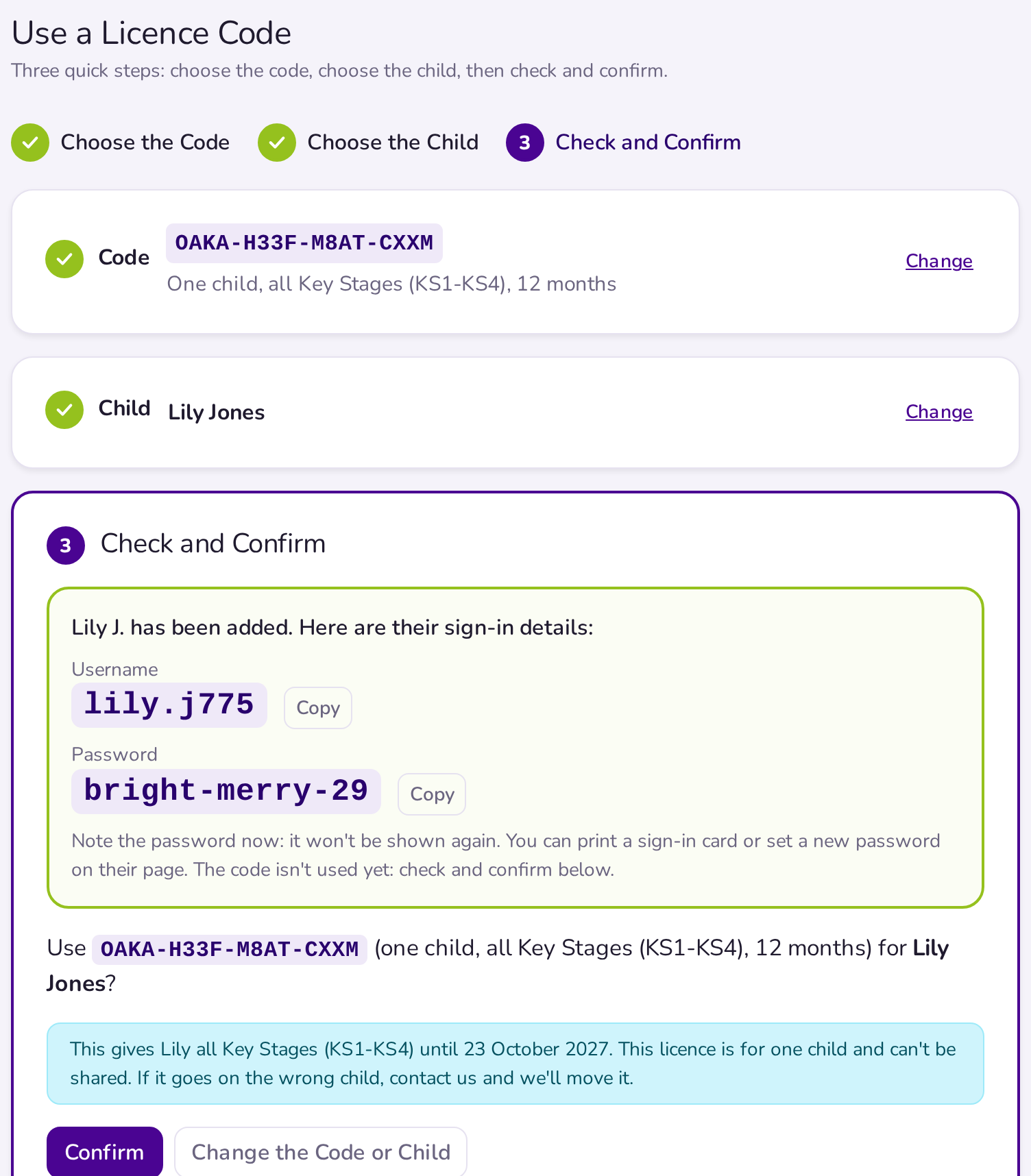
4. Your Child's Sign-In Details
When you add a child, they get their own username and password, shown once. Write them down, or press Print a Sign-In Card. Lost them? Open your child's page from your home page to print a new card or set a new password.
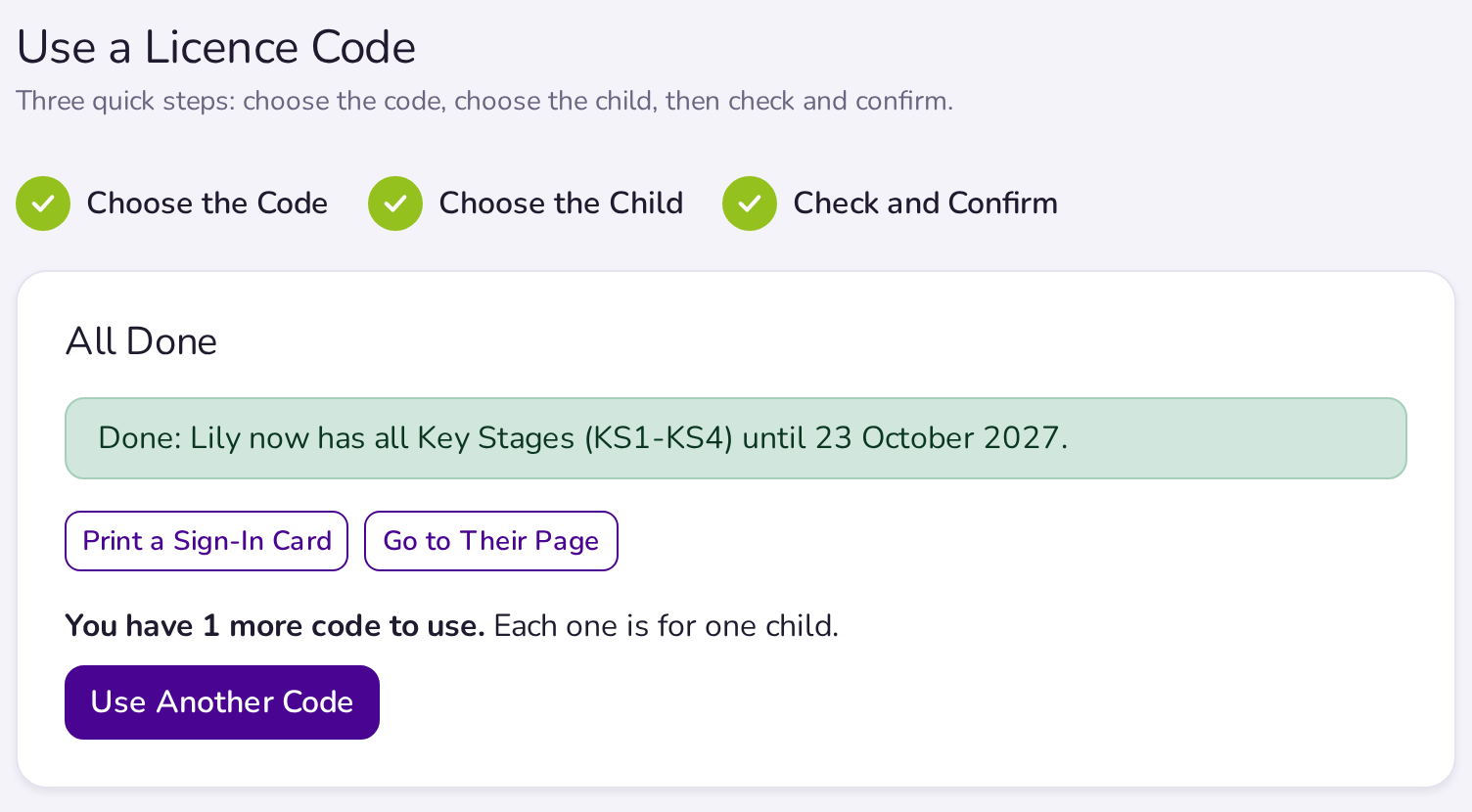
Your child signs in at learn.oakabooks.co.uk with their username (not your email address) and their password.
Good to Know
- One code for each child. For a second child, press Use This Code again and choose them.
- Your codes are for your family's account only. They work when you're signed in with the email address they were sent to.
- Put a code on the wrong child? Email us and we'll move it.
- Renewing. We'll remind you before a licence ends. Renew through the company you bought from. Your child's progress is always kept.
Still stuck? Email [email protected]. We aim to reply within one working day.